
Back to all walkthroughs



Velociraptor Basics
Investigate a suspicious Print Spooler alert with Velociraptor and weigh what the evidence shows.
medium
To access material, start machines and answer questions login.
What Is Velociraptor?
Velociraptor is a free, open-source Digital Forensics and Incident Response () tool that responders use to collect evidence from endpoints and to search many machines at once from one web console. It gets its answers by running queries, written in the Velociraptor Query Language (VQL), on those endpoints.
In this room, we will use Velociraptor to investigate a suspicious file on a Windows print server, working the case as part of the incident response team at Meridian Freight Solutions. This first task covers how Velociraptor works, then we will start the lab and open the console.
How Velociraptor Works
The server is the half of Velociraptor that hosts the web console, passes our requests on and stores the answers. The client is a small program on each endpoint that runs the queries we send and returns what it finds as rows of data.
Each request we send to a client is called a collection. It asks one narrow question, such as whether a file exists at a path or what its hash is. The server keeps the answer with the client it came from and the time it ran. A collection travels from the analyst to the server, on to the selected client and back through the server:
analyst -> server -> selected client -> server -> analyst
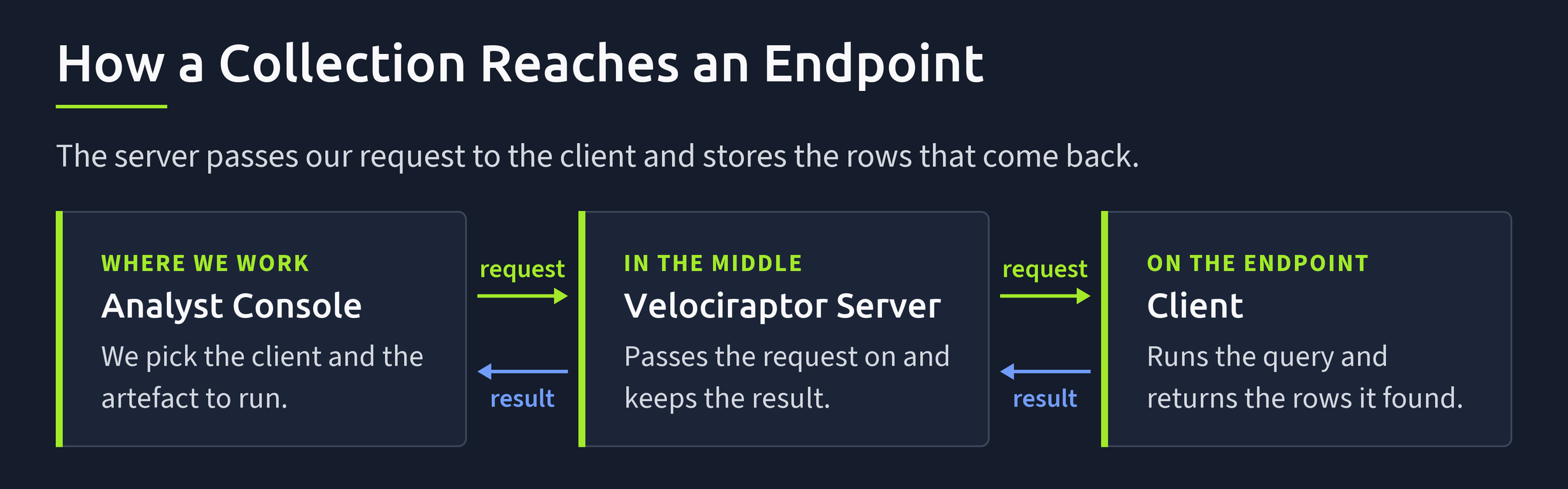
Since the server stores every result, another responder can reopen the exact result we saw. Some answers are stored before we ask for them, such as a saved directory listing or a finished hunt, and for those the server answers from its store without contacting the client.
In this lab, unlike most deployments, the server, the console and the only client all run on one Windows machine, PRN-SRV-01, and the desktop we work on is that machine's desktop.
Why Responders Use It
Most escalations reach us as a hostname and a file path. By hand, we would sign in to each machine in turn or image whole disks, and an image takes hours. A collection that asks only the question we need answered is far quicker, and Velociraptor is built for situations like these:
- When a question spans many machines, such as whether a file exists on forty servers, and we want every answer in one table
- When evidence has to survive a handover, since each result is stored with its client and its time for a colleague to reopen
- When the endpoint is live and we want to examine it through software already installed, without signing in and changing it as we look
- When a quick, targeted answer can tell us whether a full disk image is needed
Velociraptor can also monitor endpoints continuously, raise alerts and capture network traffic, but we will not use those features here.
What We Will Learn
- Find an endpoint's client record and work from its client ID
- Run a collection and check its state before using the result
- Browse a stored in the Virtual Filesystem and find when it was collected
- Examine the VQL inside an artefact before running it
- Review a hunt another responder ran across the enrolled clients
- Bring the evidence together and state what it supports
Prerequisites
No previous Velociraptor experience is needed, only basic familiarity with Windows, file paths and Dynamic Link Library (DLL) files. Three rooms from earlier in the path teach that background:
- Introduction to Windows IR, which introduces incident response on Windows networks
- Key Artifacts for DFIR, which covers the Windows evidence responders collect
- IR Process at Scale, which shows how a response changes when it spans many hosts
Start the Lab Machine
Let's start the machine by selecting Start Lab Machine on the machine card below. The status badge reads On within about a minute, and the desktop appears a few minutes after that, signed in automatically with no password to type.
Set up your virtual environment
To successfully complete this room, you'll need to set up your virtual environment. This involves starting the Lab Machine, ensuring you're equipped with the necessary tools and access to tackle the challenges ahead.

Lab machine
Status:Off
Velociraptor's tables are wide and the split view is narrow, so the machine is easier to use in a separate browser tab. The expand control at the bottom of the machine pane opens it there, and the pane then reports that the session has moved, which is expected. The power control that terminates the machine sits right beside the expand control, so check which one the pointer is on before clicking.
If the new tab shows the THM AttackBox instead of a Windows desktop, we select the machine whose name begins with velociraptor-basics in the bar along the bottom of the tab.
Open the Console
Once the desktop is up, let's double-click the Meridian Freight Console shortcut. Firefox opens Velociraptor at the address below and shows a sign-in box with the analyst account and its password already filled in:
https://ir-console.meridianfreight.local:8889/app/index.html
When we select Sign in, the console opens on its welcome page, headed Welcome to Velociraptor!. Its links are for administrators setting up a deployment, and our work starts from the Search clients field at the top instead.
Each collection we launch is recorded against the account we signed in with, and the user menu at the top right shows its name. The account can view results and run three approved artefacts, but it cannot change the server or write queries. Response teams often hand out a limited account like this during an incident, to stop anyone changing the server by accident.
Firefox trusts the console's certificate because the lab's deployment created its own certificate authority and added it to this machine's trusted list. In a production deployment, we would check a console's certificate against the one the response team published before trusting it.
Answer the questions below
Which account is the Velociraptor console signed in as?
Ready to learn Cyber Security?
The Velociraptor Basics room is only available for Premium or Max subscribers. Signup now to access more than 500 free rooms and learn cyber security through a fun, interactive learning environment.
Already have an account? Log in