
Wi-Fi Fundamentals and Reconnaissance
Learn how Wi-Fi works and use airodump-ng to map networks and reveal hidden SSIDs.
easy

To access material, start machines and answer questions login.
A wireless network extends an organisation's infrastructure beyond the boundary that physical security controls. An access point transmitting inside an office radiates through walls into the surrounding streets and car parks, placing part of the attack surface outside the building entirely. Despite this, wireless is frequently omitted from penetration tests in favour of web applications and internal networks.
The Wi-Fi Hacking module (coming soon), which this room opens, covers wireless assessment from initial reconnaissance through to attacks against enterprise deployments that authenticate each user individually. This first room addresses reconnaissance, establishing which networks are present, which security configuration each one runs, which clients are associated with them and which networks those clients continue to request even when they are not connected to anything.
Learning Objectives
- Explain how wireless networks operate, including access points, stations, BSSIDs, ESSIDs, channels and frequency bands.
- Describe the main 802.11 frame types and why beacons and probe requests matter to an attacker.
- Put a wireless interface into monitor mode and deal with the processes that interfere with it.
- Enumerate every network in range across both the 2.4 GHz and 5 GHz bands using
airodump-ng, and interpret its output. - Identify hidden networks, uncover their names and join one to reach what the cloaking was concealing.
Prerequisites
Familiarity with the Linux command line is assumed. No prior wireless knowledge is required, and no wireless adapter is needed, because the lab environment simulates its radios in software. On real hardware monitor mode is not universal, so an assessment depends on a card and driver that support it. The aircrack-ng suite, hashcat, mdk4 and wpa_supplicant are pre-installed, along with the remaining utilities the module relies on.
Machine Access
Start the lab by clicking the Start Machine button below. The machine takes a couple of minutes to boot and then appears in Split View in your browser. For convenience, you can use the expand button in the bottom-left corner of Split View to open the VM in full-screen mode. No login is required, as the session is already authenticated as the user account.
Set up your virtual environment

If you prefer using your own , you can SSH in using the credentials below::
Credentials
Confirm that the wireless interfaces are present:
user@debian-thm:~$ sudo iw devSeveral wlan interfaces are listed, numbered from wlan0 upward. These are the radios used to observe the networks in the lab and, in later rooms, to attack them. Most of the tooling requires root privileges, so commands are prefixed with sudo; the password, where prompted, is user.
Deploy the machine and read through the introduction, then continue to the next task when you are ready.
Wi-Fi is defined by the IEEE 802.11 family of standards. The attacks covered in this module exploit design decisions written into the standard itself rather than implementation defects in particular products, which means the mechanism has to be understood before the attack against it makes sense.
Access Points and Stations
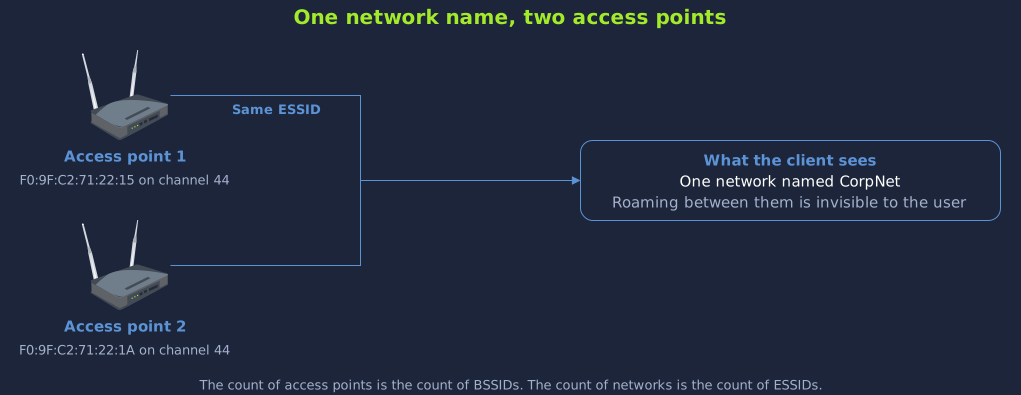
A wireless network involves two categories of device. The Access Point () creates the network and bridges its wireless clients to the wired network behind it. A domestic router performs this role, and a corporate office may operate dozens of them advertising the same network name so that coverage is continuous across the building.
The Station (STA) is any client device that connects to an access point, from laptops and phones to networked printers and sensors. A station that has completed the connection process is described as associated, and an access point together with all of its associated stations forms a Basic Service Set (BSS).
vs vs
Three terms describe the identity of a wireless network and are routinely conflated.
| Term | What it is | Example |
|---|---|---|
| BSSID | The MAC address of the AP's radio, uniquely identifying one access point. | F0:9F:C2:71:22:15 |
| ESSID | The human-readable network name shown in a device's list of networks. | CorpNet |
| SSID | The name field itself. In practice "SSID" and "ESSID" are used interchangeably. | CorpNet |
The distinction has practical consequences during enumeration. A single network name such as CorpNet may be advertised by several access points, each with a distinct BSSID, in order to maintain coverage across a site. The count of access points is therefore the count of BSSIDs, and the count of networks is the count of ESSIDs.
Channels and Frequency Bands
Wireless radios do not all transmit on the same frequency. Regulators set aside bands, contiguous ranges of spectrum, for Wi-Fi, and each band is then divided into channels that individual networks operate on. The bands differ in their propagation and throughput characteristics.
At 2.4 GHz the signal attenuates less over distance and passes through building materials more readily, so for a given transmit power a network on this band tends to reach further, though the range actually achieved depends on the equipment rather than the band alone. It is usually the most congested band and comparatively slow. Most regions expose channels 1 through 13. A channel number is an index into frequency rather than a count, each step of one moving the centre by 5 MHz, so channel 1 sits at 2412 MHz and channel 6 at 2437 MHz. A channel is wider than that spacing, which is why only channels roughly five apart avoid overlapping and why the set 1, 6 and 11 is the one most commonly used. The 5 GHz band reaches less far for the same power but offers considerably more non-overlapping channels and higher throughput, which is why modern and enterprise deployments tend to operate there. The 6 GHz band, introduced with Wi-Fi 6E and 7, opens further, generally uncongested spectrum and is encountered occasionally.
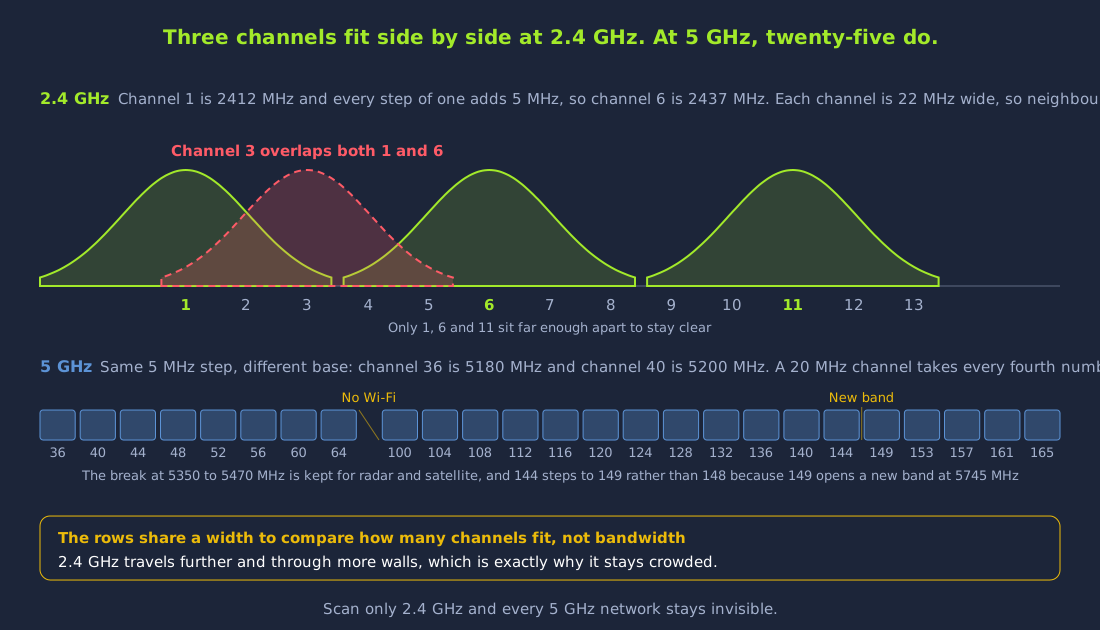
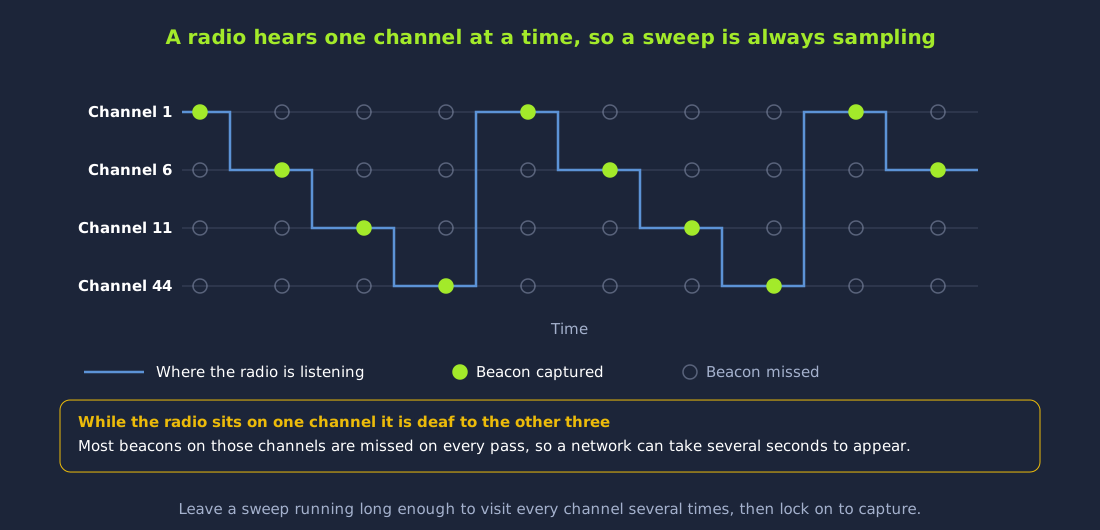
This division of the spectrum constrains reconnaissance directly, because a monitor-mode interface can only receive on one channel at a time. Surveying an environment therefore requires the scanner to hop between channels, and many tools hop only across 2.4 GHz unless instructed otherwise. An engagement scanned on that default will omit the enterprise networks entirely, since those commonly operate on 5 GHz.
What is the term for the MAC address that uniquely identifies a single access point?
What term describes the human-readable name of a wireless network?
Every transmission from a wireless device is an 802.11 frame, and distinguishing the types is what converts a raw capture into a readable account of activity, showing which clients are advertising previously joined networks and which access points are disconnecting stations. The standard divides frames into three classes.
The Three Frame Classes
Management frames establish and maintain the relationship between stations and access points. Under the older standards they traverse the air in the clear and unauthenticated, so any device within range can both read and forge them, which is what most of the attacks in the early part of this module rely on.
Control frames are short messages that coordinate access to the shared medium so that devices do not transmit simultaneously. RTS and CTS (Request to Send and Clear to Send) reserve the channel ahead of a transmission, and an ACK confirms that a frame was received intact.
Data frames carry the payload the network exists to transport. On an encrypted network that payload is protected, but the header surrounding it is not, and that unprotected header proves more useful to an attacker than might be expected.
Reconnaissance leans hardest on two management frames, the beacon and the probe request, which are examined first; the authentication, association and deauthentication frames that later attacks exploit follow.
Beacon Frames
An access point advertises its presence by broadcasting beacon frames, typically around ten times per second. Each one carries the access point's BSSID, the network's ESSID unless the network is configured to withhold it, the operating channel, the supported data rates and the security configuration in use, which is everything a nearby device requires in order to decide whether and how to connect.
A scanner enumerating nearby networks is, for the most part, receiving these beacons. Passive scanning is possible precisely because of this behaviour, since most networks announce themselves continuously and are therefore discoverable without transmitting anything at all.
Probe Requests
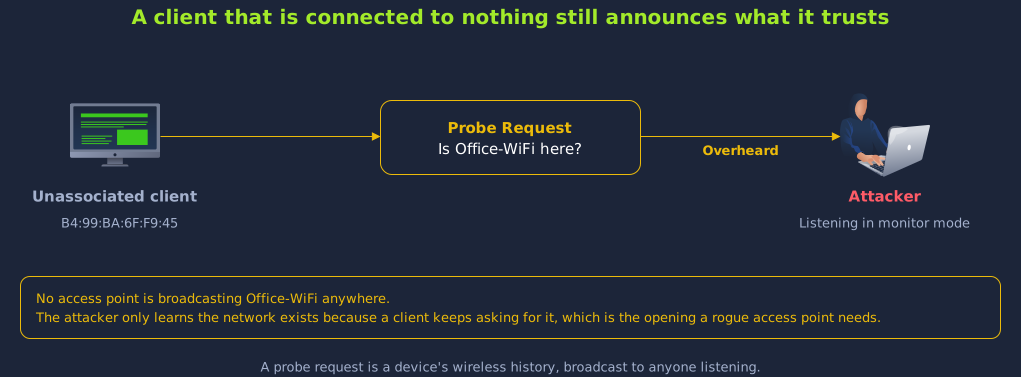
Stations do not only wait for beacons. A probe request is the management frame a client transmits when it actively searches for a network. Many implementations probe by name for networks the device has connected to previously, with the result that a phone or laptop broadcasts the list of networks it trusts to any receiver in range.
This behaviour underpins several of the more effective attacks in the module. A device requesting CorpNet or Home-2G discloses enough for an attacker to stand up a network under that name and wait for the device to associate without further intervention. An access point that hosts a probed network replies with a probe response, carrying much the same information as a beacon.
Authentication, Association and Deauthentication
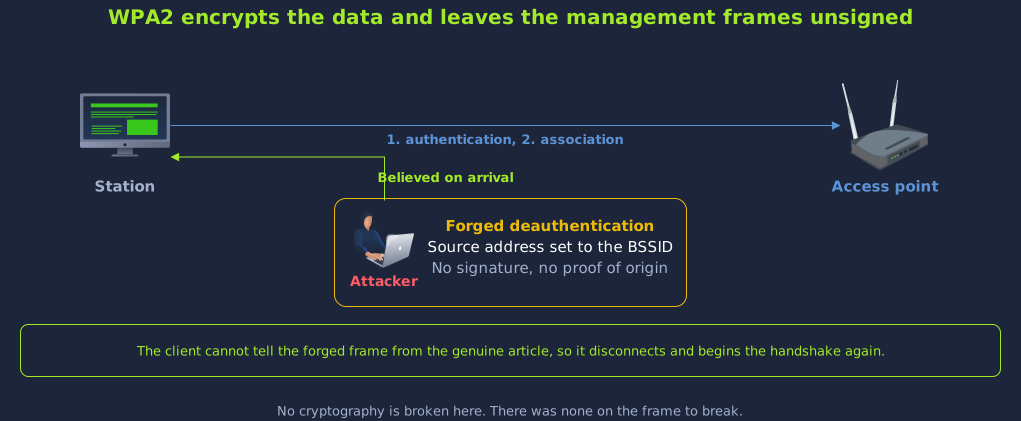
Joining a network is a two-stage exchange carried in management frames. A station first authenticates with the access point and then associates with it. Termination requires only a single frame, a deauthentication, which either party may send.
Under WPA2 that frame is not authenticated, so nothing prevents an attacker from spoofing the access point's address and transmitting a deauthentication to a client, disconnecting it from the network at will. This property is used to capture handshakes in the Attacking Open and WPA2-PSK Networks room (coming soon), and Management Frame Protection (802.11w), the mitigation introduced to address it, is covered later in the module.
Which type of 802.11 frame does an access point broadcast periodically to advertise its presence?
Which management frame does a client send to actively search for a network by name?
A wireless interface must be reconfigured before it can be used to observe networks it is not connected to. The airmon-ng workflow below is demonstrated against wlan0 and transfers directly to physical hardware.
Managed Mode vs Monitor Mode
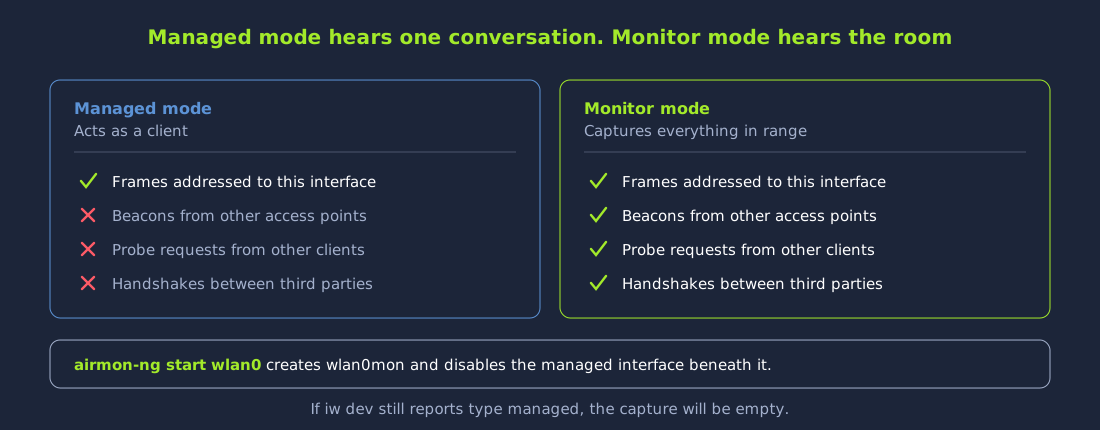
A wireless interface operates in managed mode by default. In this mode the radio behaves as an ordinary client, associating with a single access point and passing to the operating system only those frames addressed to it, discarding everything else received. This is unsuitable for reconnaissance, which requires visibility of all traffic rather than a filtered subset.
Monitor mode removes that filtering. An interface in monitor mode passively captures every 802.11 frame it receives on its current channel, irrespective of the network or device the frame belongs to, so beacons, probe requests, authentication handshakes and ordinary data traffic all reach the capture layer. The equivalent on a wired interface is promiscuous mode.
Dealing With Interfering Processes
Services such as NetworkManager and wpa_supplicant run continuously to keep a wireless interface connected, scanning for networks and retuning the radio as they do so. That activity conflicts with monitor mode and produces unreliable captures. The aircrack-ng suite provides airmon-ng, which both changes the mode of an interface and terminates the processes that would otherwise interfere. Begin by identifying what is running:
user@debian-thm:~$ sudo airmon-ng check
Found 5 processes that could cause trouble.
Kill them using 'airmon-ng check kill' before putting
the card in monitor mode, they will interfere by changing channels
and sometimes putting the interface back in managed mode

    PID Name
    478 avahi-daemon
    481 avahi-daemon
    512 NetworkManager
    598 wpa_supplicant
    664 dhclient
Each of these is standard on a Linux host, and they are worth taking in the order the check lists them. avahi-daemon advertises local services in the background, NetworkManager and wpa_supplicant together handle joining wireless networks, and dhclient requests an IP address once a connection is established. All of them will reconfigure the interface without prompting, so all are stopped before the mode is changed. Only some of them are killed by process ID, which is why the output names fewer processes than the check listed. NetworkManager and avahi-daemon are services, so they are stopped through systemd rather than by signal, and dhclient goes down with the interface it was serving, so none of the three appears in the list below:
user@debian-thm:~$ sudo airmon-ng check kill

Killing these processes:

    PID Name
    598 wpa_supplicant
Enabling Monitor Mode
Place wlan0 into monitor mode:
user@debian-thm:~$ sudo airmon-ng start wlan0
PHY	Interface	Driver		Chipset

phy2	wlan0		mac80211_hwsim	Software simulator of 802.11 radio(s) for mac80211
		(mac80211 monitor mode vif enabled for [phy2]wlan0 on [phy2]wlan0mon)
		(mac80211 station mode vif disabled for [phy2]wlan0)
phy3	wlan1		mac80211_hwsim	Software simulator of 802.11 radio(s) for mac80211
phy4	wlan2		mac80211_hwsim	Software simulator of 802.11 radio(s) for mac80211
phy5	wlan3		mac80211_hwsim	Software simulator of 802.11 radio(s) for mac80211
phy6	wlan4		mac80211_hwsim	Software simulator of 802.11 radio(s) for mac80211
phy7	wlan5		mac80211_hwsim	Software simulator of 802.11 radio(s) for mac80211
phy8	wlan6		mac80211_hwsim	Software simulator of 802.11 radio(s) for mac80211
phy62	wlan60		mac80211_hwsim	Software simulator of 802.11 radio(s) for mac80211
The two indented lines beneath the wlan0 row record the result. A monitor interface named wlan0mon has been created, and the managed wlan0 has been disabled. The rows below them are the other simulated radios present on this machine, which airmon-ng lists because it reports every radio on the system rather than only the one it was asked to change. From this point onward wlan0mon is the interface passed to scanning and attack tooling, not wlan0.
Both changes can be confirmed by querying the interface directly. iw is the Linux utility for configuring and inspecting wireless devices, and its dev subcommand lists every wireless interface the kernel knows about together with the mode each one is in:
user@debian-thm:~$ sudo iw dev
...
phy#2
	Interface wlan0mon
		ifindex 73
		wdev 0x200000002
		addr 02:00:00:00:00:00
		type monitor
		channel 1 (2412 MHz), width: 20 MHz (no HT), center1: 2412 MHz
		txpower 20.00 dBm
...
The type monitor field confirms that the radio is receiving raw frames. An interface reporting type managed is still operating as a client, and captures taken from it will be empty.
Tip: An interface is returned to normal operation with
sudo airmon-ng stop wlan0mon, followed bysudo systemctl start NetworkManagerto restore connectivity. This is not required during this room, but is standard practice at the end of a real engagement.
After running sudo airmon-ng start wlan0, what is the name of the monitor-mode interface that is created?
airodump-ng, the enumeration component of the aircrack-ng suite, resolves the raw frame stream into a structured account of which networks are present, which clients are attached to each, how each is secured and which channel each operates on.
Running airodump-ng
Direct airodump-ng at the monitor interface. It hops across the 2.4 GHz band by default, which is where the sweep starts, and the 5 GHz networks are reached further down this task by locking to their channel. Running it as two passes, a broad one and then a targeted one, is also how a scan is normally taken on an engagement:
user@debian-thm:~$ sudo airodump-ng --band bg wlan0mon--band bg restricts the sweep to the 2.4 GHz band, b and g being the two 802.11 modes that operate there. Because of the single-channel constraint described in Task 2, airodump-ng performs channel hopping within it, moving between channels several times per second and dwelling on each only briefly, which accounts for the continuously changing display and for the delay before a network appears. A scan should run for 30 to 60 seconds to allow several passes across every channel, and is stopped with Ctrl+C.
Lab note: On physical hardware
--band abgsweeps every band in a single pass, withaselecting 5 GHz andbandgselecting 2.4 GHz. The simulated 5 GHz radio in this environment can stall when forced to hop across all bands at once, which is why the two separate sweeps are used here.
Reading the Access Point Section
The upper section lists access points, one row per BSSID. A 2.4 GHz sweep of the lab produces:
 CH 11 ][ Elapsed: 48 s ][ 2026-07-04 14:32

 BSSID              PWR  Beacons    #Data, #/s  CH   MB   ENC CIPHER  AUTH ESSID

 F0:9F:C2:71:22:10  -30      120       45    0   6   54   OPN              Guest-WiFi
 F0:9F:C2:71:22:12  -34      118       12    0   6   54   WPA2 CCMP   PSK  Home-2G
 F0:9F:C2:71:22:11  -41       96        8    0   3   54   WEP  WEP         Home-Legacy
 F0:9F:C2:71:22:13  -38      102        3    0   8   54   WPA2 CCMP   PSK  Event-WiFi
 F0:9F:C2:6A:88:26  -36       88        0    0  11   54   OPN              <length:  9>
 F0:9F:C2:11:0A:24  -33      110        0    0  11   54e  WPA3 CCMP   SAE  Mgmt-WiFi
 F0:9F:C2:1A:CA:25  -35      108        2    0  11   54e  WPA3 CCMP   SAE  IT-Admin
 88:15:44:AA:3A:10  -67       40        0    0   3   54   WPA2 CCMP   PSK  MOVISTAR_JYG2
 88:15:44:78:8A:F3  -70       35        0    0   6   54   WPA2 CCMP   PSK  MiFibra-5-D6G3
 88:15:44:BF:99:A2  -72       28        0    0   9   54   WPA2 CCMP   PSK  vodafone7123
 88:15:44:BC:FA:C1  -69       33        0    0  11   54   WPA2 CCMP   PSK  WIFI-JUAN
The F0:9F:C2:* rows are the access points within scope. The 88:15:44:* rows are neighbouring networks from surrounding buildings and are filtered out during analysis.
Decoding the Columns
Each column carries information used during target selection:
| Column | Meaning |
|---|---|
| BSSID | The MAC address of the AP's radio, the unique identifier for one specific access point. |
| PWR | Signal strength (in dBm). Closer to 0 is stronger. -30 is adjacent; -70 is distant. Useful for physically locating an AP. |
| RXQ | Receive quality, the percentage of frames from this AP that arrived intact over the last few seconds. It appears only when -c pins the radio to a single channel, because a hopping scan is never listening long enough to measure it. Most rows here read 0 while their beacon count climbs steadily, which is the absence of a measurement rather than a report of a bad link, so read it alongside Beacons rather than on its own. |
| Beacons | Beacon frames broadcast by this AP since the scan started. A steadily climbing count means a live, nearby AP. |
| #Data | Captured data frames. A busy network indicates where the users are. |
| #/s | Data frames captured per second over the last few seconds. |
| CH | The channel the AP is operating on. |
| MB | The maximum speed the AP advertises, which reads 54 on every network in this environment. A trailing . or e denotes short preamble / QoS support. |
| ENC | The encryption family, reported as OPN, WEP, WPA, WPA2 or WPA3. |
| CIPHER | The cipher in use, whether CCMP (modern, AES-based), TKIP (legacy) or WEP. |
| AUTH | How clients authenticate, shown as PSK (pre-shared key), SAE (WPA3), MGT (enterprise / 802.1X) or OWE. |
| ESSID | The network name. If it is blank or shows <length: N>, the network is hidden. |
Three rows merit attention. F0:9F:C2:6A:88:26 carries no name, only <length: 9>, marking a hidden network and the subject of the next task. Mgmt-WiFi and IT-Admin both report AUTH SAE, marking them WPA3-Personal. Those columns report the handshake an access point prefers rather than the whole set it will accept, so a WPA3 network still admitting legacy WPA2 clients is indistinguishable here from one that refuses them. Separating the two takes the beacon's own security element rather than this summary of it, which the Attacking WPA3 and Rogue Access Points room (coming soon) takes up.
Reading the Station Section
The lower section lists stations, meaning client devices, which disclose information that access points do not:
 BSSID              STATION            PWR    Rate    Lost   Frames  Notes  Probes

 F0:9F:C2:71:22:10  80:18:44:BF:72:47  -41   0 - 1e     0      24
 F0:9F:C2:71:22:10  B0:72:BF:B0:78:48  -44   0 - 1      0      12
 F0:9F:C2:71:22:10  B0:72:BF:44:B0:49  -47   0 - 1      0       8
 F0:9F:C2:71:22:11  64:32:A8:56:32:56  -52   0 - 1      3      30
 F0:9F:C2:71:22:12  28:6C:07:6F:F9:43  -38   0 - 6e     0      72
 F0:9F:C2:71:22:12  28:6C:07:6F:F9:44  -41   0 - 6      0      35
 F0:9F:C2:1A:CA:25  10:F9:6F:AC:53:52  -38   0 - 6e     0      40
 (not associated)   B4:99:BA:6F:F9:45  -63   0 - 1      0       5             Office-WiFi,Jason
 (not associated)   78:C1:A7:BF:72:46  -66   0 - 1      0       4             Office-WiFi,Jason
The BSSID column identifies the access point each client is associated with. Three devices are attached to Guest-WiFi, two to the WPA2 network Home-2G, one to the WEP network Home-Legacy and one to IT-Admin, and these associated clients are the targets for the deauthentication and handshake-capture attacks in the Attacking Open and WPA2-PSK Networks room. Rows marked (not associated) belong to clients connected to no network but still probing, with Probes recording the names each requests. The Notes column is empty for every row here, as it records what a capture has already yielded for a client and this sweep has caught nothing of that kind yet.
Cross-referencing the two sections produces a further result. Both of these clients are asking for Office-WiFi and Jason, and neither name appears anywhere in the access point list above. Take Office-WiFi as the example. That network is not present in the environment at all, and its existence is known only because a client continues to request it. This is the precondition for a rogue access point attack, in which an attacker creates an Office-WiFi network and the probing device associates with it directly. The same reasoning applies to every other name that turns up under Probes without a matching access point, and each one is a network some device in range has been configured to trust.
This part of the scan rewards patience. Devices probe in bursts rather than continuously, so the Probes column fills in gradually and a given name may take a minute or two to surface. A capture stopped after twenty seconds usually shows some of the probed names and rarely all of them, and more than one name will eventually appear there without a matching access point. Leave the scan running until the column stops growing. A station that is associated with nothing probes across every channel, so it reaches whichever sweep the radio happens to be running at the time and may appear in the 5 GHz scan below rather than this one.
The 5 GHz Band
In this lab the highest-value targets are absent from a 2.4 GHz scan. The lab's enterprise networks, which authenticate users through 802.1X against a corporate identity store, all operate on the 5 GHz band on channel 44. Lock the radio to that channel and scan again:
user@debian-thm:~$ sudo airodump-ng --band a -c 44 wlan0mon
 CH 44 ][ Elapsed: 42 s ][ 2026-07-04 14:35

 BSSID              PWR RXQ  Beacons    #Data, #/s  CH   MB   ENC CIPHER  AUTH ESSID

 F0:9F:C2:71:22:15  -37   0      439      141    3  44   54e  WPA2 CCMP   MGT  CorpNet
 F0:9F:C2:71:22:1A  -45   0      439       58    0  44   54e  WPA2 CCMP   MGT  CorpNet
 F0:9F:C2:71:22:17  -39   0      439      658    9  44   54e  WPA2 CCMP   MGT  CorpNet-Secure
 F0:9F:CB:3F:BC:27  -42   0      439       15    0  44   54   WPA2 CCMP   MGT  CorpNet-Legacy
 F0:9F:C2:71:22:16  -40   0      439      114    1  44   54e  WPA2 CCMP   MGT  Branch-Office
 F0:9F:C2:7A:33:28  -43   0      439      204    3  44   54e  WPA2 CCMP   MGT  Branch-Tablets
 F0:9F:C2:71:AF:2F  -38   0      439      994   15  44   54   WPA3 CCMP   OWE  FreeConnect

 BSSID              STATION            PWR    Rate    Lost   Frames  Notes  Probes

 F0:9F:C2:71:22:15  64:32:A8:07:6C:40  -44   54e-54e     0      185
 F0:9F:C2:71:22:1A  64:32:A8:BA:6C:41  -46    0 - 6e     0        2
 F0:9F:C2:71:22:17  64:32:A8:BC:53:51  -47   54e-54e     0      563  PMKID  open-wifi,home-WiFi,WiFi-Restaurant
 F0:9F:C2:71:22:17  64:32:A8:BA:18:42  -49   24e-54e     0       54  PMKID
 F0:9F:CB:3F:BC:27  64:32:A8:AD:AB:53  -48    6 - 6    120       63         CorpNet-Legacy
 F0:9F:C2:71:22:16  64:32:A8:AC:53:50  -45   54e-54e     0      110  PMKID  Branch-Office
 F0:9F:C2:7A:33:28  64:32:A8:A9:DE:55  -52   54e-54e     0      144  PMKID  Branch-Tablets
 F0:9F:C2:7A:33:28  64:32:A8:BD:64:54  -50   36e-54e     0       56  PMKID  Branch-Tablets
 F0:9F:C2:71:AF:2F  64:32:A8:FA:21:F4  -43    6e- 6e     0     4161         FreeConnect
Every row apart from FreeConnect reports AUTH MGT, the marker for enterprise 802.1X authentication, and none of them appeared during the 2.4 GHz sweep. The first two rows illustrate the BSSID and ESSID distinction from Task 2, with CorpNet appearing under both F0:9F:C2:71:22:15 and F0:9F:C2:71:22:1A. FreeConnect reports AUTH OWE, an open network requiring no password whose traffic is nonetheless encrypted, so it presents as open to the user while behaving as a protected network on the wire. The Notes column carries values here where it was empty throughout the 2.4 GHz sweep. PMKID marks an identifier seen during association, which the Attacking Open and WPA2-PSK Networks room describes as the clientless alternative without taking it. The other value this column can show, EAPOL, marks captured handshake frames and appears in that room rather than this one.
Filtering by Channel and BSSID
Once a target has been identified, the full sweep is replaced by a capture restricted to a single channel and usually a single access point, written to disk for later analysis:
user@debian-thm:~$ sudo airodump-ng -c 44 --bssid F0:9F:C2:71:22:15 -w corpnet-capture wlan0mon-c 44 disables channel hopping and pins the radio to channel 44, which is required for any continuous capture of a single network, such as waiting to observe a WPA2 handshake. --bssid restricts the display to that one access point, and -w corpnet-capture writes the captured frames to a set of files sharing that prefix, which is the subject of Task 7.
ENC, CIPHER and AUTH at a Glance
The security columns determine which attacks are applicable to each network.
| Value | Column | Meaning |
|---|---|---|
| OPN | ENC | Open network, no encryption at all. |
| WEP | ENC | Legacy, thoroughly broken encryption. Treat as open. |
| WPA2 + PSK | ENC / AUTH | "Personal" WPA2, a single shared password. The classic handshake-capture target. |
| WPA3 + SAE | ENC / AUTH | WPA3-Personal, using the SAE handshake, resistant to offline cracking. |
| OWE | AUTH | Open network with encryption: no password, but traffic is protected. |
| MGT | AUTH | Enterprise / 802.1X: each user has their own credentials, checked against a central authentication server. |
What value appears in the AUTH column for an enterprise (802.1X) network?
What channel are the enterprise networks operating on?
How many access points are broadcasting the ESSID CorpNet?
One access point in the scan beacons continuously while carrying no name. Recovering that name is a standard part of wireless reconnaissance.
Cloaking
An access point ordinarily advertises its in every beacon frame. Some administrators configure it to omit that name, on the assumption that a network which cannot be seen cannot be attacked.
That assumption does not hold. Cloaking removes the name from the beacons and does nothing further. The access point still transmits on its channel, still answers to its , still advertises its security configuration, and the name itself still crosses the air each time a client connects, carried in the connection frames rather than the beacons. The name has therefore not been removed from the air, only relocated from beacons into other frames, and recovering it requires collecting one of those frames.
How a Hidden Network Looks in airodump-ng
A cloaked access point still appears in a scan, with an empty ESSID field. Taking the channel 11 rows out of the 2.4 GHz sweep already run in Task 5 puts it beside its neighbours:
 BSSID              PWR  Beacons    #Data, #/s  CH   MB   ENC CIPHER  AUTH ESSID

 F0:9F:C2:11:0A:24  -39      142        0    0  11   54e  WPA3 CCMP   SAE  Mgmt-WiFi
 F0:9F:C2:1A:CA:25  -41      138        4    0  11   54e  WPA3 CCMP   SAE  IT-Admin
 F0:9F:C2:6A:88:26  -37      151        0    0  11   54   OPN              <length:  9>
 88:15:44:BC:FA:C1  -63       44        0    0  11   54   WPA2 CCMP   PSK  WIFI-JUAN
Everything except the name is visible for F0:9F:C2:6A:88:26 on channel 11, down to the OPN value in its ENC field. In place of the name, <length: 9> records that airodump-ng received the SSID element with its text blank but its true length intact. The length is therefore disclosed even though the name is not, and any candidate name tested against this access point must be exactly nine characters.
Two Ways to Reveal the Name
Two approaches recover a cloaked SSID, and the applicable one depends on whether the network has clients.
The passive approach takes the name from a client, because a client that already knows the network will name it when reconnecting. A deauthentication frame, exploiting the unauthenticated management behaviour described in Task 3, forces a reconnect, and the client's probe request or association request then carries the real ESSID in cleartext for the monitor interface to capture. This is the quieter option, but it requires a client to be present.
The active approach transmits directed probe requests containing candidate names, and the access point returns a probe response only when a candidate matches its real ESSID, which makes any reply a confirmed result. This constitutes an online dictionary attack against the network name. No row in the STATION section of that sweep names F0:9F:C2:6A:88:26 as its access point, so this network has no associated clients to take the name from, which eliminates the passive approach and leaves the active one.
Revealing the SSID With mdk4
mdk4 is a Wi-Fi frame-injection toolkit whose probing mode (p) implements the active attack. Lock the monitor interface to the target's channel first so that it does not hop away mid-attack:
user@debian-thm:~$ sudo iw dev wlan0mon set channel 11Then probe the hidden BSSID with a wordlist of candidate names, pre-placed at /home/user/wordlists/ssid-names.txt. Here p selects probing mode, -t identifies the target BSSID and -f supplies the wordlist:
user@debian-thm:~$ sudo mdk4 wlan0mon p -t F0:9F:C2:6A:88:26 -f /home/user/wordlists/ssid-names.txt
Waiting for a beacon frame from target to get its SSID length.
SSID length is 9
Trying SSID: Employees
Packets sent:      1 - Speed:    1 packets/sec
Probe Response from target AP with SSID Staff-Net

Job's done, have a nice day :)
mdk4 reads the SSID length from a beacon as 9, then tests only the nine-character candidates and skips the remainder, which cuts the search space substantially. The probe response returned for Staff-Net confirms the name, because a response is returned only for the correct one, and the airodump-ng window fills the ESSID field in from that same frame.
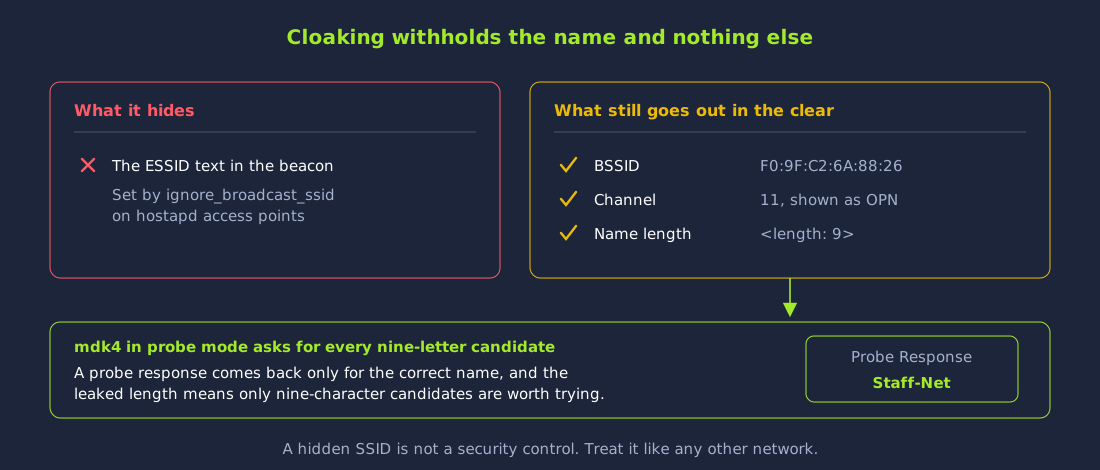
A hidden SSID is not a security control. The name was withheld from the beacons, the length was disclosed regardless, no client existed for the configuration to protect, and a short wordlist completed the recovery. Hidden networks are treated exactly as visible ones are.
Joining the Network You Uncovered
The name was the only thing this access point withheld. Everything else was reported in plain view, and the ENC column read OPN, meaning no passphrase stands in the way and nothing further needs breaking. Recovering the name was the whole of the work.
One setting in the client configuration carries the point of this task. A station ordinarily finds a network by listening for beacons, which are precisely what a cloaked access point does not send, so the client must ask for the network by name instead. scan_ssid=1 instructs wpa_supplicant to send directed probe requests rather than wait to be told, which is the same mechanism mdk4 used above and the same reason cloaking fails.
wpa_supplicant is the client-side daemon that drives association and, on a protected network, the key exchange that follows. The network details come from a profile rather than the command line, so -c points it at the profile written below, -i names the interface to associate on, and -B runs it in the background so the terminal stays free for the commands that follow.
user@debian-thm:~$ cat > staff.conf <<EOF
network={
    ssid="Staff-Net"
    scan_ssid=1
    key_mgmt=NONE
}
EOF
user@debian-thm:~$ sudo wpa_supplicant -B -i wlan1 -c staff.conf
Successfully initialized wpa_supplicant
user@debian-thm:~$ sudo iw dev wlan1 link
Connected to f0:9f:c2:6a:88:26 (on wlan1)
	SSID: Staff-Net
	freq: 2462
	RX: 2672 bytes (62 packets)
	TX: 122 bytes (2 packets)
	signal: -30 dBm
	tx bitrate: 48.0 MBit/s

	bss flags:	short-slot-time
	dtim period:	2
	beacon int:	100
Successfully initialized wpa_supplicant reports only that the daemon started, not that it joined anything, so the association is confirmed with iw rather than taken from that line. Starting a second supplicant on an interface that already has one produces a long run of nl80211: kernel reports: Match already configured warnings instead, which is the signal to stop the first one rather than a fault in the profile.
Note the interface. wlan0mon is in monitor mode and cannot associate with anything, so the connection is made on wlan1, a second radio still in managed mode. Request an address:
user@debian-thm:~$ sudo dhclient -v wlan1
Internet Systems Consortium DHCP Client 4.4.3-P1
Copyright 2004-2022 Internet Systems Consortium.
All rights reserved.
For info, please visit https://www.isc.org/software/dhcp/

Listening on LPF/wlan1/02:00:00:00:01:00
Sending on   LPF/wlan1/02:00:00:00:01:00
Sending on   Socket/fallback
DHCPDISCOVER on wlan1 to 255.255.255.255 port 67 interval 6
DHCPOFFER of 192.168.16.23 from 192.168.16.1
DHCPREQUEST for 192.168.16.23 on wlan1 to 255.255.255.255 port 67
DHCPACK of 192.168.16.23 from 192.168.16.1
bound to 192.168.16.23 -- renewal in 40722 seconds.
The host part of that address differs between runs, since it comes from a pool. Constant are the subnet and its gateway at .1, which serves the router configuration panel, and the panel still carries the manufacturer default credentials. The login and retrieval script with curl are:
user@debian-thm:~$ curl -s -c cookies.txt -d "Username=admin&Password=admin&Submit=Submit" http://192.168.16.1/login.php -o /dev/null
user@debian-thm:~$ curl -s -b cookies.txt http://192.168.16.1/index.php
curl is the command-line HTTP client, and these five options make it behave like a browser signing in. -d carries the form fields as a POST, which is what the login page expects, and -c writes the session cookie the server returns into cookies.txt so that a later request can present it. -s suppresses the progress meter, and -o /dev/null discards the response body, since this first request is made only to obtain the cookie. The second request sends that cookie back with -b, which is what makes the server treat it as the same signed-in session and return the page behind the login.
The page returns a flag. Nothing on this network was cracked and no credential was recovered from the air. The access point was configured to be invisible, that measure was the only one protecting it, and a nine-character length leaking from a beacon was enough to undo it.
What is the SSID of the hidden network you uncovered?
Which channel does the hidden network operate on?
In airodump-ng, a hidden network's ESSID field shows a blank name and a length in the form <length: N>. What is N here?
Which wpa_supplicant option makes the client probe for a network by name rather than wait for its beacons?
Join the network you uncovered and read the panel on its gateway. What flag does it return?
The airodump-ng output observed so far exists solely in the terminal and is discarded when that window closes. Reconnaissance therefore ends by writing captures to disk and recording what was found, because the attacks in the rooms that follow work from those saved files rather than from a live display.
Saving Captures to Disk
The -w flag instructs airodump-ng to write everything it receives to a set of files named after a given prefix. A capture meant for a later attack is locked to one channel so the radio stops hopping and stays on the target, and usually narrowed to a single BSSID as well, though omitting the BSSID filter simply records every access point on that channel instead:
user@debian-thm:~$ sudo airodump-ng --bssid F0:9F:C2:71:22:12 -c 6 -w home2g wlan0monThis records Home-2G on channel 6, writing to files prefixed home2g. Restricting the capture keeps the resulting file small, and disabling channel hopping keeps the radio on the target long enough to receive the frames that matter.
The Files Produced by a Capture
A capture started with -w does not write a single file but a set of them, each recording the same session in a different form.
user@debian-thm:~$ ls
home2g-01.cap  home2g-01.csv  home2g-01.kismet.csv  home2g-01.kismet.netxml  home2g-01.log.csv
Each run is numbered (-01, -02 and so on) so that a new capture never overwrites an existing one. The files serve different purposes:
| File | Contents |
|---|---|
.cap |
The raw captured packets, and the file that matters most. It holds every frame the radio received, from beacons through to a handshake, and it is the file passed to aircrack-ng to recover a password. |
.csv |
A plain-text summary of every access point and client observed, with BSSIDs, channels, encryption and associated stations. Straightforward to grep and to paste into notes. |
.kismet.csv |
The same survey written in Kismet's own CSV layout, carrying the same networks under a different set of column headings for any tool expecting that shape. |
.kismet.netxml |
The same summary in Kismet's XML format, for any tool that ingests it. |
.log.csv |
A running log of activity, including GPS data where a receiver is attached. |
Where only the summary is required, airodump-ng can be restricted to CSV output:
user@debian-thm:~$ sudo airodump-ng --output-format csv --bssid F0:9F:C2:71:22:12 -c 6 -w home2g wlan0mon--output-format restricts what is written to disk. Left alone, airodump-ng writes a packet capture, two Kismet files and a rolling log alongside the summary, so naming csv keeps the one file that can be read and sorted directly and leaves the rest uncreated.
Keep a Target Inventory
The .csv provides a starting point, but a separate inventory of every target worth revisiting is maintained alongside it. Each entry records the ESSID together with its BSSID, since one ESSID may be advertised by several BSSIDs, along with the channel and band, and the security configuration in use, because the encryption and authentication determine which attacks are possible.
Each entry finally lists the clients observed associated with the network. That field determines where effort is best directed, since a number of attacks require a client to be present, capturing a WPA2 handshake being the clearest example.
Which airodump-ng flag writes the captured data to files?
Reconnaissance is finished. The card began in managed mode with no picture of the airspace, and the room ended with a map of every network at the site, the clients attached to each and the names those clients still call out for while attached to nothing.
The work behind it breaks down as follows:
- Preparing the interface:
airmon-ng check killstoppedNetworkManager,wpa_supplicantand the other interfering processes, thenairmon-ng start wlan0createdwlan0mon, confirmed bytype monitoriniw dev. - Sweeping both bands:
airodump-ng --band bg wlan0moncatalogued 2.4 GHz, and since the enterprise networks sit on channel 44,airodump-ng --band a -c 44 wlan0monreached those separately, leaving the88:15:44:*rows out of scope. - Classifying each network: The
ENC,CIPHERandAUTHcolumns putGuest-WiFiatOPN,Home-LegacyatWEP,Home-2GatWPA2 PSK,Mgmt-WiFiandIT-Adminboth atSAEand the channel 44 enterprise networks atMGTwithFreeConnectatOWE. - Reading the station list: The lower section tied clients to access points, three of them to
Guest-WiFi, while the(not associated)rows caughtB4:99:BA:6F:F9:45probing forOffice-WiFiandJason, names nothing was broadcasting. - Uncovering the hidden SSID:
F0:9F:C2:6A:88:26beaconed on channel 11 as<length: 9>with no client to deauthenticate, somdk4 wlan0mon p -t F0:9F:C2:6A:88:26 -f /home/user/wordlists/ssid-names.txtprobed it until it answered toStaff-Net, andwpa_supplicantthen joined it onwlan1withscan_ssid=1.
None of it required transmitting anything of consequence, and that is the point. Two properties of 802.11 did the work, the first being that access points announce themselves continuously in beacons and the second that management frames travel in the clear without authentication. The one network that tried to withhold its name resisted the first and fell to the second. Everything gathered here, the ENC, CIPHER and AUTH values that classify each network, the stations shown associated in the lower section and the probed names with no matching access point, is what the attacks in the rooms ahead select their targets from. Observation never touches a network, but it decides which attack each network is open to, and that judgement is the whole value of the phase.
What's Next
Most of the configurations catalogued here are attacked in the rooms that follow, where observation gives way to access.
- Attacking Open and WPA2-PSK Networks (coming soon) takes on the two commonest configurations, bypassing a captive portal on an open network and then capturing and cracking a WPA2 four-way handshake in order to join as a legitimate client.
- Attacking WPA3 and Rogue Access Points (coming soon) covers what happens once the offline crack stops working, including the downgrade back to WPA2 and the evil twin.
- Attacking Enterprise Wi-Fi and Attacking Weak and Misconfigured EAP (both coming soon) go after the
MGTnetworks, the first with a rogue RADIUS server that captures and relays credentials, the second with EAP itself, where EAP-MD5 is read off the air and EAP-TLS holds until its certificate authority is robbed. - Attacking Legacy Wi-Fi and Attacking OWE and the 6 GHz Band (both coming soon) take the two extremes of the sweep, recovering the
WEPkey behindHome-Legacyand joiningFreeConnectwithout a password.
Before moving on, it is worth running the sweep again and reading the output cold, without the walkthrough alongside it. Pick a network off the list and say what its ENC, CIPHER and AUTH values commit an attacker to, then check the Probes column for a name no access point is broadcasting. Being able to do that at a glance turns the rooms ahead into a choice of attack rather than a set of instructions.
You're ready to move on. Click Complete to finish.
Ready to learn Cyber Security?
TryHackMe provides free online cyber security training to secure jobs & upskill through a fun, interactive learning environment.
Already have an account? Log in